
What is a Managed Resource Group?
When you create an Azure resource in your resource group, you may be expecting only that resource to be created. This seems reasonable! But sometimes your resource needs other resources to be able to function properly. Those additional resources go into a managed resource group.
As “Create Synapse workspace” says, providing a good definition for a managed resource group:
Managed resource group is a container that holds ancillary resources created by Azure Synapse Analytics for your workspace. By default, a managed resource group is created for you when your workspace is created.
https://portal.azure.com/#create/Microsoft.Synapse
Name Them!
Microsoft doesn’t provide a naming recommendation for managed resource groups, but it does provide a suggestion for resource group: rg- If you’re following that, then perhaps a simple mrg- will do.
A managed resource group can be created by default if you don’t or can’t provide a name.
Here’s an example of an automatically named managed resource group:
synapseworkspace-managedrg-4ff96d80-e464-4512-a577-3d3942041366
As you can see from this image for creating a synapse workspace, you are provided the opportunity to provide the name for the managed resource group. It’s not required to enter that managed resource group name, but it’s a great idea!
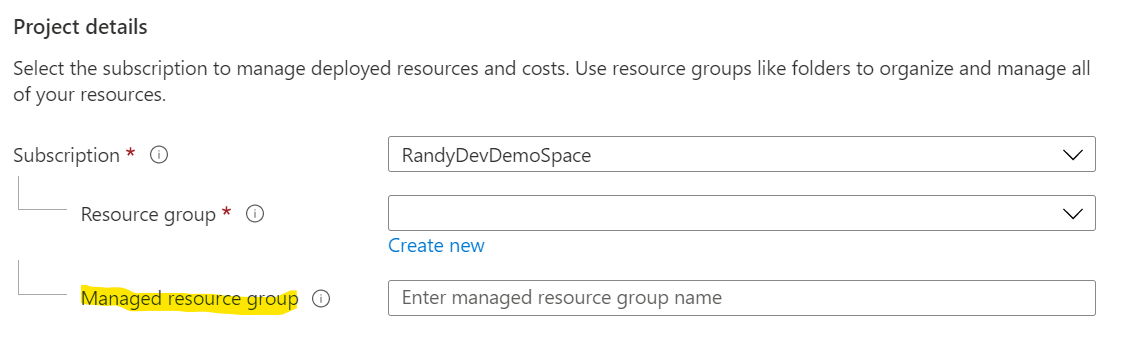
NOTE: Databricks doesn’t give the option to name its managed resource group from the portal.
The Managed Resource Group is Empty!
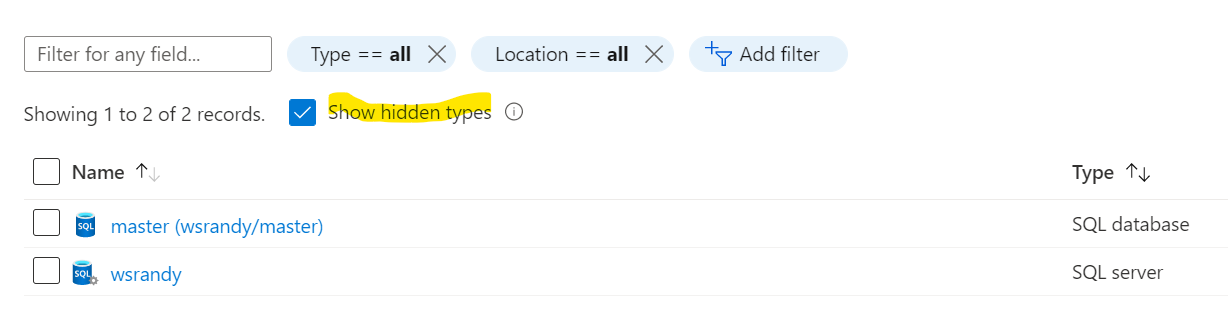
No it isn’t! Holy moly, calm it down! Take a look again and click, “Show hidden types”.
In this example from a Synapse instance, we can see a master database for Synapse.
Why Can’t I Change the Managed Resource Group?
You have Deny permission within a managed resource group, but it’s not just you – it’s everybody. You won’t be able to make any changes to the resources that you find within the managed resource. On the other hand, you also can’t add tags to those resource groups.
As the note says for “Deny assignments”: “Deny assignments take precedence over role assignments and also apply to classic administrator assignments.” Using myself as an example below, you can see that I am the Owner at the Subscription level, but that Deny below will block me.

What Happens When I Delete a Resource with a Managed Resource Group?
It depends, a little bit.
If your resource created a managed resource group, then it will delete that managed resource group as well, along with all the resources within.
If the resource you created also created a virtual network, a NetworkWatcherRG resource group is automatically created with a Network Watcher within. When you delete your resource that created that virtual network, the NetworkWatcherRG is not going to be automatically deleted. You can delete the resource group yourself, however. It is not a managed resource group, so the same Deny doesn’t apply.
Azure Resources with Managed Resource Groups
Here are some Azure resources that have managed resource groups to store their inner workings. These are the resources in the managed resource group at the time that the new resource is created. The contents can change and grow over time.
- Databricks – a storage account, a network security group, and a virtual network. Because a virtual network is created, a NetworkWatcherRG resource group is automatically created with a Network Watcher within. This will only be created at the creation time of Databricks if this is the first virtual network to be created and you haven’t opted out. It’s a whole thing, check it out here.
- Synapse Analytics – a SQL Server and master database
- Purview – a storage account and event hub
- Managed Application – determined by developer of the Managed Application
 DataSimAntics
Is it possible to see what the “parent” of the managed resource group is? How can you see the relationship or what managed resource group belongs to what?
LikeLike
Are you familiar with resources.azure.com? It’s an interface that will let you view your resources in a different way. Sometimes it can give you a peek into what’s going on.
So, here’s what I did. resources.azure.com > subscriptions > my subscription > resourceGroups > my managed resource group > providers > Microsoft.SQL > servers > my synapse.
We’re connecting the dots here because we’re looking under the name of the managed resource group and we’re getting from that the name of the Synapse instance. When you click on the name of your synapse under that, you will see the name of the Synapse connected to that resource group. Try it out and let me know if this works for you, too!
LikeLike